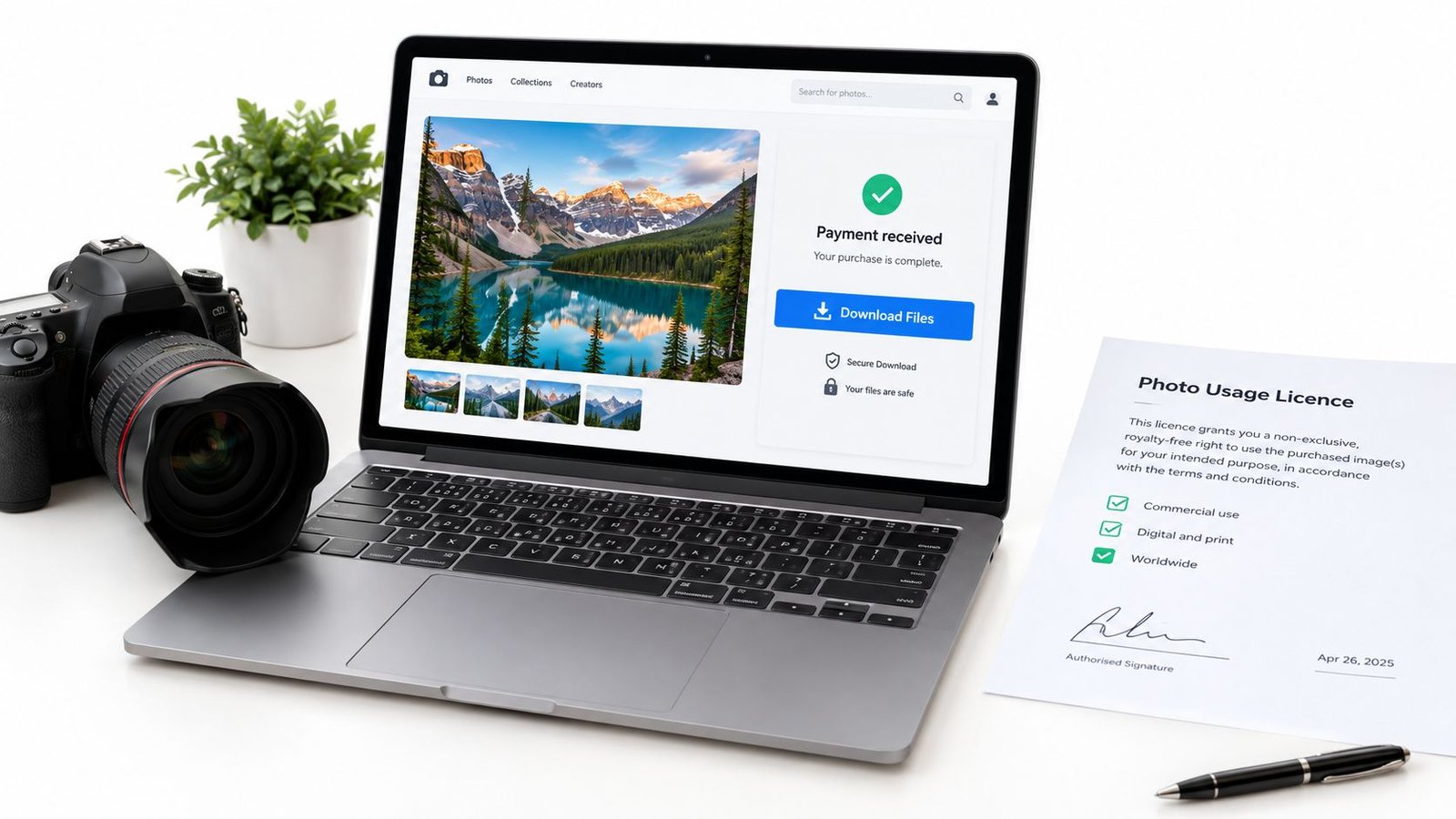

Most advice on selling PDFs online focuses on making the file and turning on automatic delivery. That leaves out the decisions that often trigger refunds and disputes: whether buyers can use the file, what the price includes, how instant access affects cancellation rights, and what evidence shows the order was delivered.
The wider online-sales market offers context, but it does not tell you how many PDFs sell. The Office for National Statistics publishes retail sales data, not a verified estimate of PDF sales. Treating that page as evidence for specific e-commerce figures would give sellers a shaky basis for judging demand. A guide, workbook or template sold on a website is a direct digital offer, but its performance depends on the product, audience and sales process.
Build accessibility, delivery classification, consent and buyer support into the offer from the start. A file that is difficult to use, unclear access terms, or missing order records can turn a sale into a complaint. A clear support route helps resolve failed downloads before they become refund requests. These details are part of the product, not cleanup for after launch.
Table of Contents
- The Eight Stages of Selling a PDF Online
- How to Build a PDF Buyers Can Open and Use
- How to Package the Offer and Set Licence Terms
- Delivery Method, VAT and Consent Before Download
- How to Test a Live Order Before You Publish
- How to Promote Without Breaking Email and Cookie Rules
- How to Handle Failed Downloads and Buyer Complaints
The Eight Stages of Selling a PDF Online
A PDF is one file inside a larger product. The offer page, the licence, the delivery record and the route for help decide whether the buyer received what they paid for. This fits independent creators, educators, coaches and small businesses selling a guide, workbook, template or report, including sellers who also offer physical goods, services or live sessions and want the download to follow the same order discipline.
Move only when the stage has a concrete output. A decision that lives in your head is not finished.
| Stage | Decision you make | Output before moving on |
|---|---|---|
| 1. Define the offer | Scope, audience and format | A one-sentence promise and inclusions list |
| 2. Build the file | Layout and accessibility approach | Tagged PDF plus HTML or plain-text companion where practical |
| 3. Set price and licence | Price tier and what buyers may do with the file | Stated licence and price on the offer page |
| 4. Classify delivery | Automated, manually emailed or linked to a live session | Delivery method note and VAT review |
| 5. Set consent | Consent and acknowledgement before instant access | Consent record and confirmation message |
| 6. Publish the OfferLink | Title, description, FAQs and support route | Live offer page with clear next steps |
| 7. Promote | Channels and consent for marketing email | Campaign plan with consent records |
| 8. Support buyers | Replacement, refund and dispute process | Written support process linked to the order record |
Three stages get skipped most often: accessibility, consent and support. A handsome layout does not tell assistive technology how to read the file. A sentence buried in terms does not remove a cancellation right. "Email me if something breaks" is not a process once a link has expired. Those gaps, not a weak topic, produce most refunds and complaints on PDF products.
A file you can admire on your own laptop is not yet something a stranger can buy, open and use.
How to Build a PDF Buyers Can Open and Use
Accessibility is a product-quality and conversion control, not a last formatting pass. A visually polished PDF is often the wrong primary format. GOV.UK guidance on understanding accessibility recommends publishing HTML wherever possible, because it works better with browser settings and assistive technologies. Where a PDF must stay, guidance on publishing accessible documents expects an accessible alternative alongside it. Organisations providing goods or services to the public also have duties to make reasonable adjustments under the Equality Act 2010. For an independent creator, that duty shows up as tagged headings, a meaningful reading order, alt text, searchable text, adequate colour contrast, simple tables, and an HTML or plain-text companion.
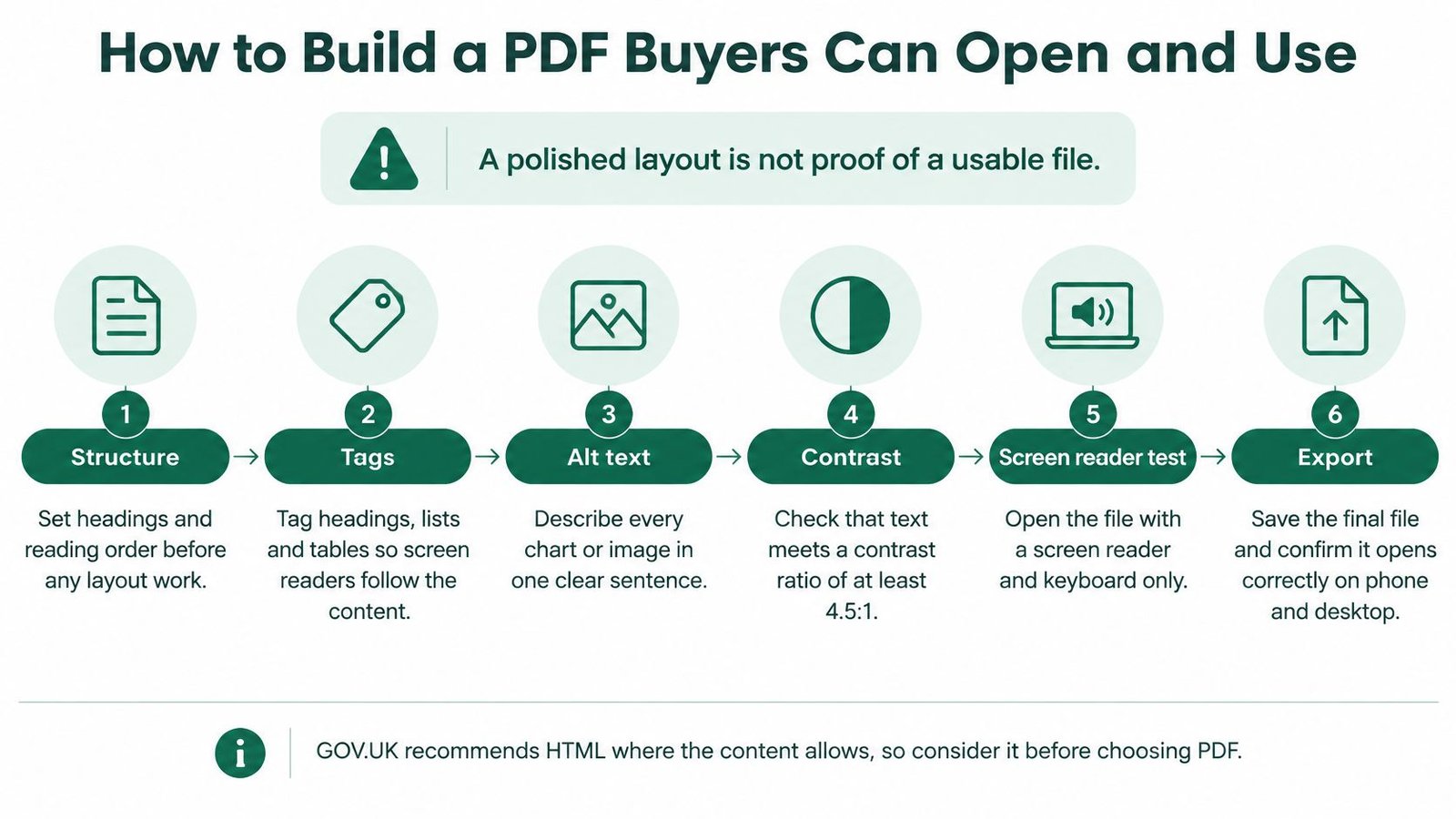
PDFs cannot be made fully accessible to every assistive-technology user. Promising an "accessible PDF" while supplying only a designed file is the common pitfall, and it creates refunds you could have avoided.
Build the source before you design
- Write with real structure. Use semantic headings, lists and descriptive link text in the source document. A heading that exists only as a styled image has no structure for a screen reader to follow.
- Use real text, not scans. Scanned page images look finished and cannot be searched, resized or read aloud. If a worksheet must include a scan, add a text layer and say so.
- Add alternative text to informative graphics. One clear sentence per chart or diagram is enough. Skip decorative rules and icons, or mark them so they are ignored.
- Set language, title and reading order. Document properties should name the file and the language. Visual order on the page is not the same as reading order when text boxes were dragged into place.
Export, then test like a buyer
- Keep tables simple. Merged cells and decorative grids fall apart in assistive technology. Use straightforward rows and columns, or replace the table with a list.
- Export with accessibility tags. An untagged export throws away the headings you wrote. Confirm tags survived the export rather than assuming the design tool kept them.
- Run an automated PDF checker. It will catch missing language, untitled documents and images without alt text. It will not catch a confusing reading order, so treat a clean report as a start.
- Test keyboard navigation and a screen reader on desktop and on a phone. Tab through links. Listen to one section. If you cannot reach the download instructions without a mouse, the file is not ready.
For a short guide, ship an HTML or plain-text companion with the PDF. State file format, version, intended use and accessibility limits on the offer, and say whether another format is included. Record the version and date in the document properties so a later replacement is obvious.
How to Package the Offer and Set Licence Terms
Buyers should know what they are paying for before checkout. Vague packaging is what turns a decent file into a "not as described" complaint.
What belongs on the offer page
Work through this packaging checklist and publish only what you can actually supply.
- Outcome-led title: Name the result, not the file type. "Client onboarding checklist for sole traders" beats "Business PDF".
- Page count, format and version: State PDF, page count, and whether an editable or HTML copy is included.
- Intended use: Say who it is for and what job it does in one sentence.
- Inclusions: List every file, bonus and update. If a video walkthrough is not in the folder, do not mention it.
- Exclusions: Say what is not included, such as coaching, customisation or a printed copy.
- Arrival: Describe how the file arrives, whether that is an immediate download, a manual email or access after a session.
Licence options and what the offer must state
| Licence option | What the buyer may do | What the offer must state |
|---|---|---|
| Personal use only | Read, print for own use and keep a copy | Permitted uses and a clear statement that resale and sharing are not allowed |
| Commercial use | Use content in client work or paid products | Whether resale is allowed, any credit requirement and any third-party content excluded |
| Team or classroom | Share within a defined group | Number of users covered and who counts as a user |
| Updated edition | Receive later revisions of the same file | How long updates apply and how new versions are delivered |
| Bundle or template pack | Use several files together | Every file, its format and version included in the bundle |
Terms have to match the file. A commercial-use label on a pack that contains images or fonts you do not have rights to use invites a dispute you will lose on the paperwork. If a template includes third-party material, name what is excluded.
How to set the price without invented figures
Anchor the price to the outcome and the time the buyer saves, not to the page count. Test one tier before you add a mini version and a bundle. Show exactly which files sit in each tier. Do not use scarcity claims you cannot evidence, such as a closing date that resets every week.
Any tax shown next to the price has to be checked against current rules. Treatment changes with the product, the customer and where the sale is treated as taking place. That check belongs with the delivery decision in the next stage, not in a guess on the pricing page.
Delivery Method, VAT and Consent Before Download
One question decides the workflow: how does the buyer receive the file? Classify that before you build checkout or tax logic. Treating every PDF as an ordinary physical good, or assuming a manual email and an automatic download are taxed the same way, is the mistake that shows up later.
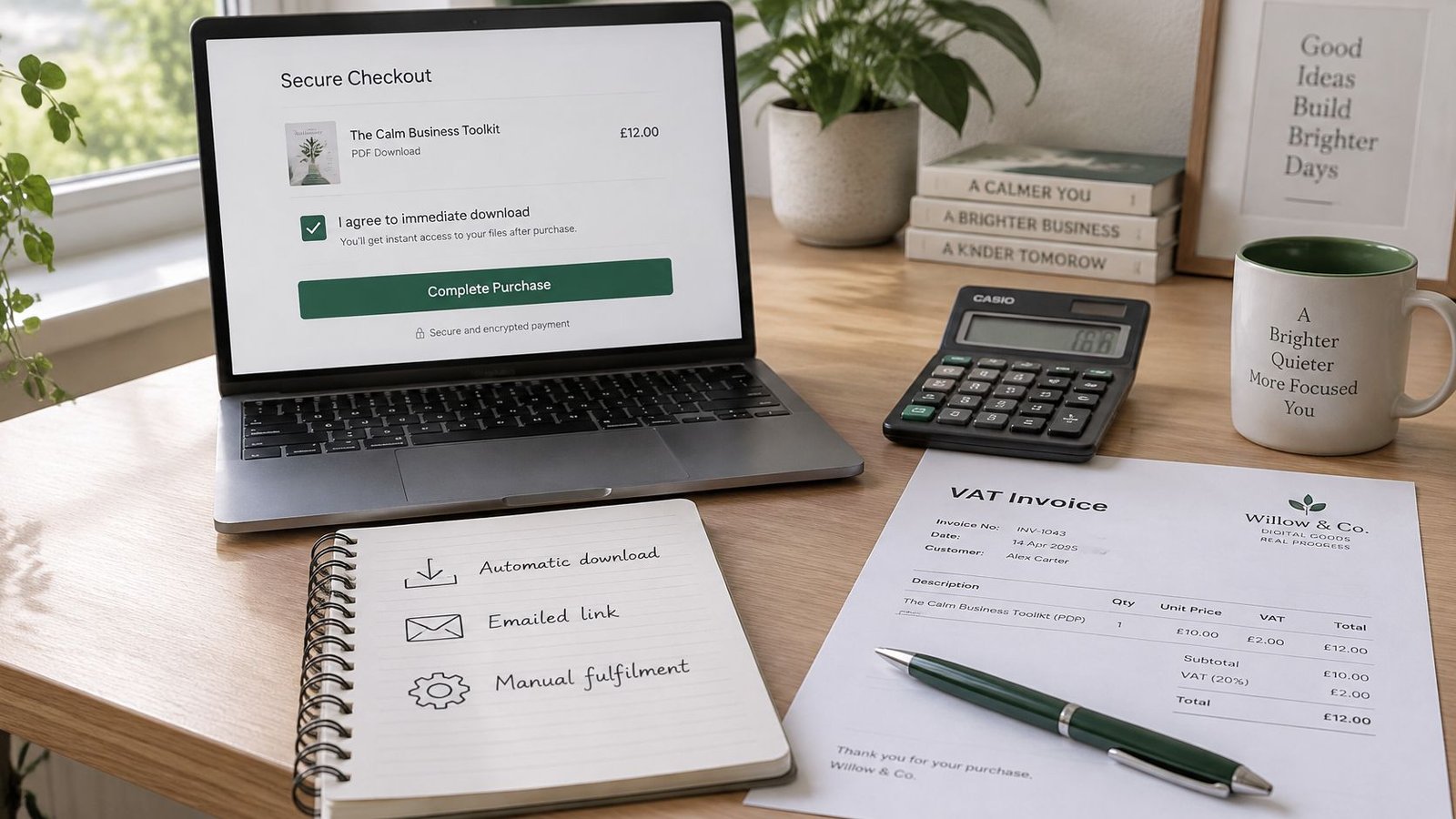
HMRC's VAT rules for digital services supplied to private consumers treat a PDF that is automatically downloaded or emailed as an electronically supplied digital service. For those automated sales to UK consumers, HMRC states that digital services are liable to UK VAT. A PDF the seller emails manually sits outside those specific electronically supplied rules. Registration thresholds, reduced or zero rates, place-of-supply rules and cross-border sales depend on the product, the customer and the transaction. Get current professional advice for your model rather than copying another seller's setup. If the sales route itself is still undecided, compare platforms for selling digital products before you lock fulfilment.
Three delivery cases
| Delivery method | Tax and consent check | Record to keep |
|---|---|---|
| Automatic download or emailed link after payment | Electronically supplied digital service; check UK VAT for UK consumers and capture consent before immediate access | Order, payment, download event and consent record |
| Seller emails the file manually | Outside the specific electronically supplied rules; confirm treatment with a professional | Email log with send date and file version |
| Access after a live session or service | Depends on what is supplied; treat as a separate case to review | Booking record, session date and access terms |
Document whether fulfilment is automated, manually triggered, or provided after a live or service interaction. That note drives both the operational steps and the VAT review.
Consent before instant access
A consumer normally has a 14-day cancellation period for distance contracts. Under the consumer contracts guidance, the right to cancel digital content is lost only where supply begins after the consumer has given express consent and acknowledged that starting the download removes that right. A general statement in terms and conditions does not do this. Present a clear, affirmative step before access, then confirm the contract and the acknowledgement. If consent, acknowledgement or confirmation is missing, the consumer may keep the cancellation right and may bear no cost for content supplied during that period. Exact application varies with the transaction and whether the buyer is a consumer, so check the regulations for your model.
Check before checkout: Identify who the buyer is and where they are, record how the file will arrive, and show the total price and any VAT before payment is taken.
Then capture consent and acknowledgement before access starts, send confirmation, and keep the order, payment, delivery and consent evidence together. Test refunds, failed downloads, duplicate access and support escalation on that same path. The offer's scope and delivery promise are controls, not marketing copy.
How to Test a Live Order Before You Publish

A test order often exposes problems that a preview cannot: a confusing checkout, a missing file, or support instructions that do not match what the buyer receives. Run the full purchase path before promoting the PDF, and treat accessibility, consent, delivery, and support as parts of the product.
Score each check pass or fail. Do not average the results.
- Buy your own offer using the buyer's checkout path from a logged-out browser.
- Review the order summary and any VAT or fee display before paying. A fee shown only after payment is a fail. Check that your setup for accepting payments online shows the buyer the amount due before checkout.
- Check consent and acknowledgement appear before instant access begins.
- Read the delivery message to confirm it identifies the file, version, and included materials.
- Download the PDF on a phone and desktop.
- Open it in two PDF readers and verify the document title and language.
- Repeat the keyboard and screen reader checks from the build stage. An inaccessible file can turn a completed purchase into a support request or refund.
- Match the order record to the payment and the file download or delivery email.
- Send a support message and confirm it reaches the right inbox within the response time stated on the offer.
- Test replacement and refund steps against the policy buyers actually see.
A failure in one step can affect the rest of the order. For example, changing the delivery file may fix a download problem while leaving an old version named in the email. After any change, repeat the complete test from the start, including the consent, accessibility, and support checks.
Publish only when every item passes. This makes the live order, not just the sales page, ready for buyers.
How to Promote Without Breaking Email and Cookie Rules
Buying a PDF does not mean the buyer agreed to be marketed to. The order email and the promotional email are different messages, and mixing them is how sellers breach the rules while thinking they are "just following up".
The order email delivers the purchase, the receipt and the download or access instructions. Keep marketing out of it. For promotional email to UK individual subscribers, the ICO's electronic mail marketing rules say organisations normally need consent before sending unsolicited electronic mail under PECR. Consent must be freely given, specific, informed and unambiguous. It must be separate from acceptance of terms, and the person must be able to refuse without detriment.
The soft opt-in is narrow
There is a limited existing-customer exception, often called the soft opt-in. All of these have to be true.
- You collected the details while selling, or while negotiating to sell, a product or service.
- You market only similar products or services. A workbook buyer is not automatically a lead for an unrelated course.
- You offered an opt-out when you collected the details.
- Every later message includes an opt-out.
Record how consent or the soft opt-in was obtained. Selling the file does not create a free pass to email.
Cookies are a separate permission
PECR normally requires consent before cookies or similar technologies store or access information on a person's device. The ICO's guidance on when consent is appropriate also sits alongside the point that personal data connected with email marketing must comply with the UK GDPR and the Data Protection Act 2018. Tracking pixels, analytics cookies and advertising tags around the sales page can need their own consent, distinct from the email. Do not fold the newsletter, non-essential cookies and the purchase terms into one forced checkbox. The right legal basis depends on the data use and the audience, so treat this as a design constraint and take advice where the stack is unclear.
Practical steps that hold up:
- Leave the newsletter box unticked and keep it apart from the terms.
- Log the date, wording and method of each opt-in.
- Record how each past buyer's details were collected before you rely on the soft opt-in.
- Put a simple unsubscribe route in every marketing email.
- Promote first where people already expect to hear from you, such as a list built with valid consent or a channel they chose to follow.
Before those emails go out, confirm the domain authenticates correctly. A SPF and DKIM checker shows whether receiving servers can verify that your order mail and your marketing mail are authorised to send. Failed authentication lands receipts in spam, which buyers then report as "I never got the file". Do not claim exclusive list access if the list was not built on valid consent.
How to Handle Failed Downloads and Buyer Complaints
Most PDF complaints come from delivery failures and unclear expectations, not from the prose inside the file. A buyer who cannot open the download, finds pages missing, or expected a template you never included will ask for money back. A written process turns that into evidence.
A five-step support sequence
- Acknowledge inside the response time stated on the offer. Silence reads as a refusal.
- Check the order record for the delivery event, the file version and any earlier message.
- Resend from that record, not from a folder of similarly named exports.
- Supply a corrected version if the file is wrong, and keep the earlier version in the history.
- Apply the refund or replacement policy you stated when the product is not as described.
| Symptom | Likely cause | Fix |
|---|---|---|
| Buyer cannot open the file | Wrong format, corrupted upload or outdated reader | Check the file, resend it and note the reader version needed |
| Download link missing or expired | Delivery step failed or access limit reached | Resend from the order record and check the delivery timeline |
| File incomplete or pages missing | Export error or wrong version attached | Replace with the corrected version and keep the earlier version in history |
| Not as described | Offer page claimed more than the file contains | Check inclusions against the offer, then apply your stated refund or replacement policy |
| File shared publicly | Unrestricted copying | Check purchaser watermark or record, verify the evidence and then decide on action |
Exact inclusions and rights on the offer turn a dispute into a question of evidence. Personal use, commercial use, updates and support should already match the file. That match prevents more arguments than any download lock.
Copying without pretending a lock will save you
Trading Standards' 2024–25 IP crime survey reports continuing intellectual-property enforcement, so digital sellers do have to balance access with protection against unauthorised copying. "Just add DRM" is a weak answer. Restrictive access adds friction for legitimate buyers, and an unrestricted file can still be passed on. Where it is proportionate, use a purchaser-specific watermark or identifier, keep version history and delivery records, offer a replacement download, and separate ordinary copying risk from actual infringement. Verify the evidence before you accuse a buyer.
A unified order record, such as the one AmaJova keeps against an offer, can connect the stated inclusions, delivery or access steps, messages, payment record and dispute status. Handle the exchange inside the same order management workflow rather than across scattered inboxes.
A useful reply has five lines: the order reference, what the buyer received, what the offer promised, what you have done, and the next step with a date. That structure is calmer than a long apology, and it is what you will need if the complaint continues.
AmaJova turns a downloadable guide, a service or a live session into one OfferLink with secure checkout, a clear order summary, and delivery, messages and support kept on the same order record. That is the practical setup for selling PDFs online without losing the consent step, the file version or the complaint trail. Visit AmaJova to publish the offer with those controls in place.