Where does a Snap end up when you tap send, and who can see it? Most beginners can describe the capture button. Far fewer can say who is allowed to view a Story, whether their location is being shared, or which of Snapchat's screens publishes to strangers. That gap is why so many first posts end in a small panic and a deleted Story.
The order you learn the app in matters more than the features themselves. Set your audience defaults first and everything afterwards behaves predictably. Set them last and you spend your first week guessing.
This guide follows the sequence a new user meets the app: the screens, then account setup, then the privacy switches worth changing before anything leaves your phone, then sending and posting. Where a layout differs between app versions, the reasoning still applies, so match the labels on your own screen and carry on.
Table of Contents
- Snapchat's Main Screens at a Glance
- How to Set Up Your Account Step by Step
- Privacy Settings to Check Before Your First Post
- Sending Snaps, Chats and Calls
- Posting to Stories and Checking Who Watches
- Your First Week on Snapchat
Snapchat's Main Screens at a Glance
Snapchat doesn't open on a feed. It opens on a camera viewfinder, and that one design decision explains the rest of the layout: every other screen sits one swipe away or in a tab along the bottom. Read the labels in your own version before tapping, because Snapchat reorders tabs between releases and the wording differs slightly between iPhone and Android.
| Screen or feature | How to reach it | What it is for | Who can see it |
|---|---|---|---|
| Camera | Opens when the app launches | Taking Snaps and short videos | Only the friends you send them to |
| Chat | Chat tab, or swipe across from the camera | Text, voice notes and replies to Snaps | Only people in the conversation |
| Stories | Stories tab, or swipe across from the camera | Posts that stay up for 24 hours | Your friends, or everyone if you post publicly |
| Spotlight | Spotlight tab | Public short videos from the wider community | Everyone, because it is public |
| Map | Map tab, or pinch on the camera | Seeing friends who share their location | Friends you allow, and you can hide your own location |
| Profile | Bitmoji or profile icon, top left | Your Snapcode, friends, Memories and Settings | Only the people your privacy settings allow |
Two rules keep the map simple. Snaps and chats are private: they reach only the people you deliberately send them to. Spotlight and public Stories are public: anyone using the app can find them, whether or not they know you.
Everything you post starts in the same place, the round capture button at the bottom of the camera screen. Where it goes next depends entirely on the option you choose after the photo is taken. The profile icon in the top left corner opens the rest: your Snapcode (the scannable code friends use to add you), your friends list and Settings, which is where the privacy work later in this guide happens.
A camera Snap and a Story can hold the same photo, but they aren't the same act. Check the destination before you send.
How to Set Up Your Account Step by Step
Setup takes about five minutes. The order matters because two choices, your date of birth and your phone number, are awkward to reverse later, and one of them decides how much content you see.
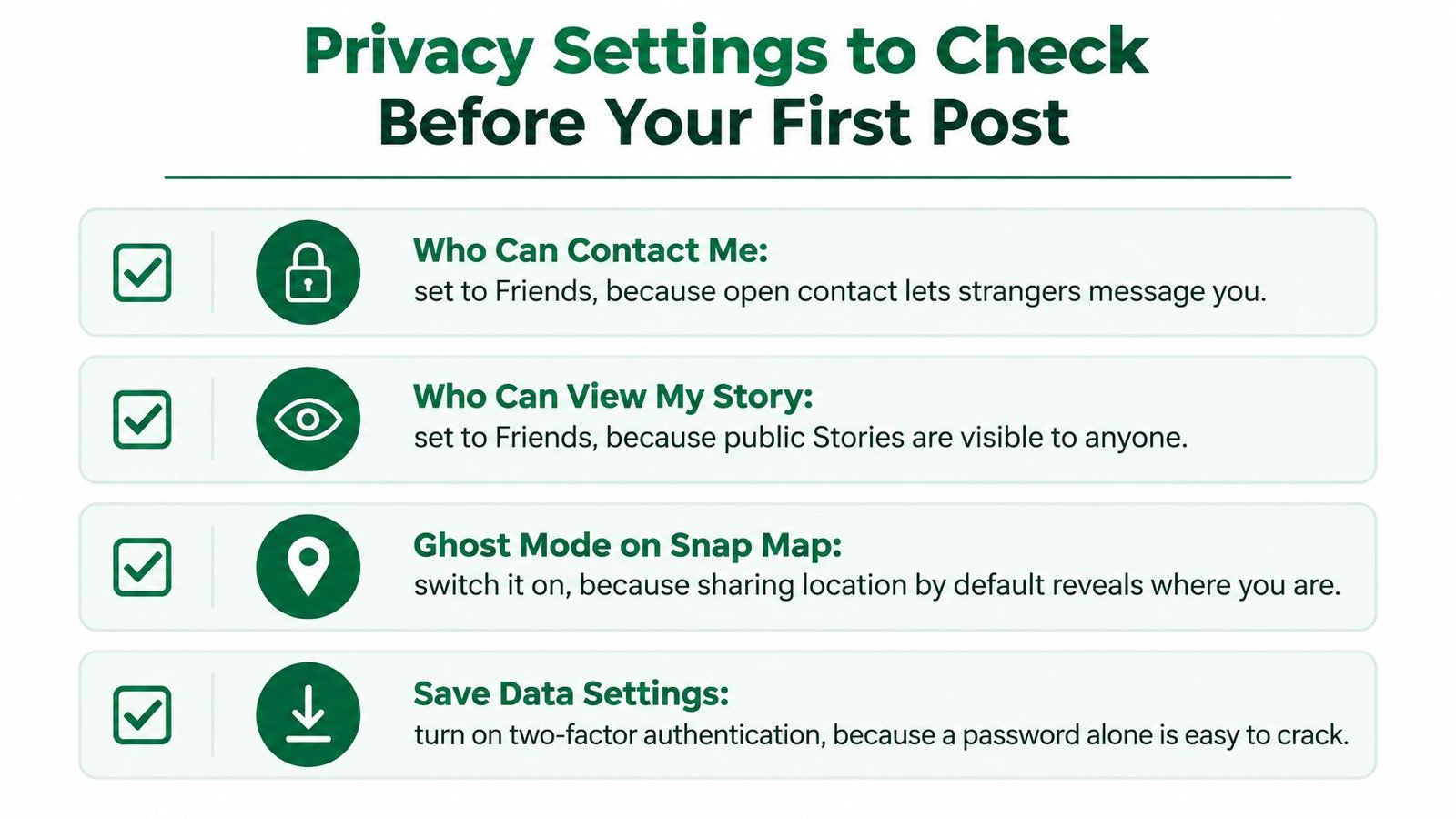
Here's the whole pre-post sequence in one view, before the step detail that follows.
- Install from the official store. Use the App Store or Google Play and confirm the developer is Snap Inc. Look-alike apps with similar icons appear regularly, so check the publisher name before you download.
- Enter your real date of birth. Snapchat uses it to set default content and privacy limits. A deliberately wrong date can leave a younger user with adult defaults they'd never choose.
- Choose a username, then a display name. The username is what friends search for, so read it character by character before confirming. The display name is the friendlier label shown above your Snaps and can be changed later.
- Add a phone number and enter the code. Verification lets your contacts find you and gives you a recovery route if you get locked out. It's the step people skip and regret.
- Add friends you know. Sync your contacts, search a username, or scan someone's Snapcode. Accept requests from people you can place, not from strangers who found your name.
- Pick a Bitmoji if you want one. The cartoon avatar is optional and purely decorative. It changes nothing about who can see your content.
- Open Settings and review privacy before you send anything. Nothing you post is visible until you've sent it, so this is the natural moment to decide your audience rather than after the first mistake.
A finished setup looks unremarkable: a profile with a name you chose, a friends list you recognise, and privacy settings you reviewed on purpose instead of leaving at whatever the app selected. That's the whole goal of the first ten minutes.
Privacy Settings to Check Before Your First Post
Do this before the first Snap, not after. Each default below exists to stop a specific accident, and each takes seconds to change.
| Setting | Where to find it | Beginner setting |
|---|---|---|
| Who can contact me | Settings, then privacy controls | Friends |
| Who can view my Story | Settings, then My Story | Friends or a custom list |
| Quick Add | Settings, then privacy controls | Off or limited |
| Ghost Mode | Map settings | On |
| Two-factor authentication | Settings, then security | On |
| Public Profile | Settings or Public Profile | Off unless you have a reason to publish |
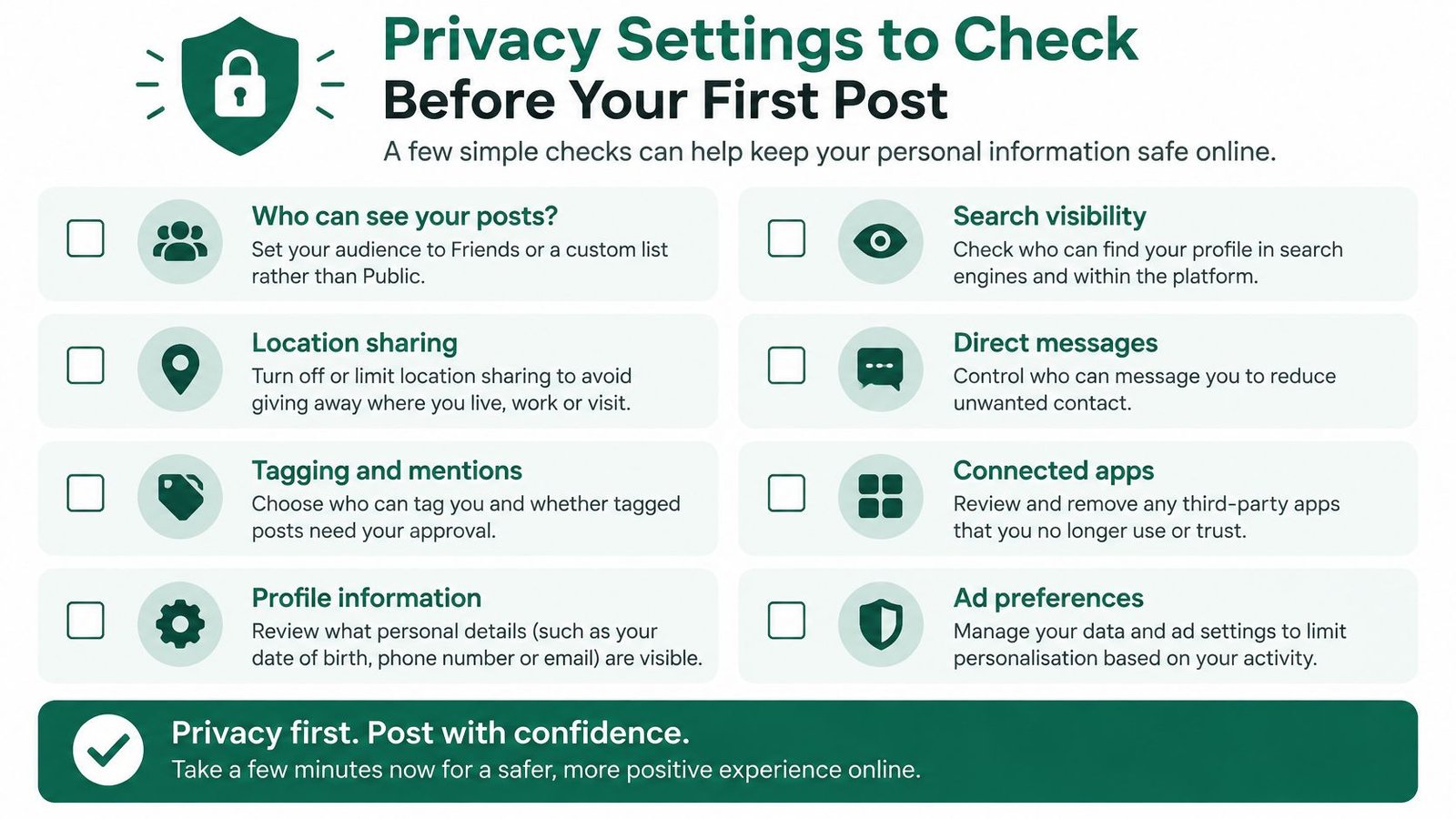
Start with who can contact me. Left open, anyone who finds your username can send a message, and the first thing a new contact does with that access is test it. Setting it to friends means a stranger has to be introduced by someone you know.
Next, who can view my Story. The public option exists for creators and it does exactly what it says. If you're posting for a handful of people, choose friends or build a custom list, and check that audience each time you post rather than trusting memory.
Then Quick Add, the setting that suggests you to people who share mutual contacts. Turning it off costs you nothing socially and stops your name circulating beyond your own circle. Ghost Mode belongs to the Map: on, and your friends can't see where you are right now.
Practical rule: turn on two-factor authentication before you customise anything else. A password alone is one guessed or reused credential away from a stranger holding your account.
A Public Profile is the setting that turns a private messaging app into a discoverable page, so leave it off unless you want to be found. Snapchat's own description of what a Public Profile includes lists a photo, bio, description, location, Stories and Lenses, a subscriber count, and Insights covering public Stories, Lenses and audience activity. It also lists website and public email fields, though availability depends on your account type and settings. If you sell, treat that page as a discovery layer and keep price, scope and delivery terms on the offer page you link to.
Once these are set, check what's public on your profiles elsewhere, because a locked-down Snapchat account is undone by an open profile on another platform. If your plans include selling photographs, the commercial side is covered in this guide to selling pictures of yourself online for money, and the audience decisions there depend on exactly the defaults you've just fixed.
Sending Snaps, Chats and Calls
Taking a Snap is one button. Tap the round capture button once for a photo, or hold it to record a short video. Before sending you can type a caption, add stickers, draw on the image or apply a Lens, then choose recipients from the send-to screen.
A Snap is built to be viewed once and then disappear. A chat message stays in the conversation until someone clears it. That difference decides which to use: something quick and visual goes as a Snap, something the other person may need to reread belongs in chat. Open the Chat tab, pick a friend and type, or hold the microphone icon to record a voice note. The phone and video icons at the top of an open conversation start a call.
Snapchat is designed for short, frequent exchanges rather than long letters. By August 2023, Snap reported more than 21 million monthly active users in the UK and said UK users opened the app an average of 50 times a day, according to Snap's UK user figures. A two-line reply is a normal reply here, not a rude one.
- Send one Snap to one friend. Take a photo, add a caption, choose that single name, send.
- Reply to a Snap with text. Open the incoming Snap, then reply in the chat rather than with another photo.
- Send the same photo to two people. Use the send-to screen to pick both names, and notice that the conversation with each stays separate.
Snapchat can tell the other person when someone screenshots a Snap or a chat, so treat a Snap as private but not secret. Send only what you'd be comfortable seeing kept. Memories is the private archive where Snaps and messages you choose to save live; items stay there until you deliberately share them, so check an old item before forwarding it.
Practise on one friend before you involve an audience of any size, and you'll never have to learn the interface while people are watching.
Posting to Stories and Checking Who Watches
Say you've set your audience and want to post something small. Take three photos in a row: the first states the point, the second shows the detail, the third says what happens next. After the third, add them to My Story and publish.
A Story is a run of Snaps shown in order, and it stays visible to its audience for 24 hours before it disappears. Friends find it in the Stories tab or by tapping your avatar at the top of their chat list, and each frame advances in sequence as they tap. Story Replies arrive in your chat, which makes a Story a quiet way to start a conversation rather than a broadcast into silence.
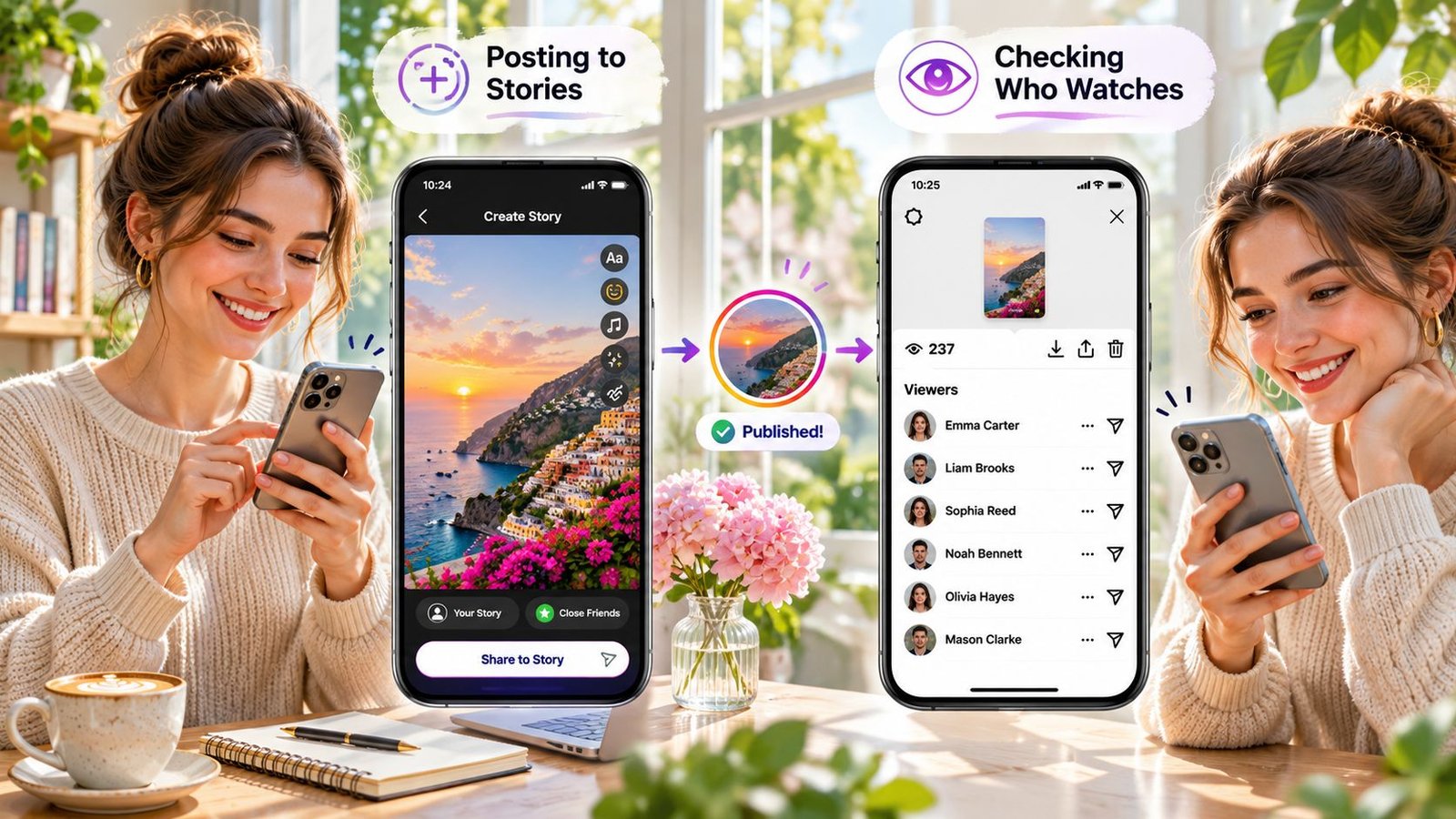
What a viewer list actually tells you
Open your own Story after a few hours and you'll see who watched each frame. That list is the honest measure for a beginner: not how many taps, but which frames held the people who started. If the last frame lost most of them, the sequence was too long or the opening was unclear.
Private and public Stories behave differently. A Story shared with friends is exactly that. A public Story can be seen by anyone and may surface in discovery areas, which is why the audience check matters every single time you post.
Public Stories report more than a viewer list. Snapchat's guide to viewing and understanding analytics explains that a Public Story reports views, viewers, screenshots, swipe-ups and Story Replies for each Snap, grouped in a 24-hour window, and past Stories can be filtered by viewers, Snap Views, average view time and total view time. Views count consumption, unique viewers count reach, swipe-ups show who acted. If you sell through Stories, this is the data worth reading, and the approach in this guide to using Stories to sell builds directly on it. AmaJova sellers keep a single OfferLink to share from a profile or a message, so the destination in a Story stays consistent.
Post two or three frames rather than one image: viewers tap forward, and a sequence with a beginning and an end holds attention in a way a single frame can't. Then finish the exercise. Post one Story to friends and open the viewer list the next morning.
Your First Week on Snapchat
For most beginners the right answer is a private account. A private presence suits anyone whose audience is friends and family, and it keeps every decision reversible while you learn which screen does what. A public profile suits creators and small businesses that want strangers to find them, but it removes the assumption that only people you know are watching.
Snapchat separates the two profile types in a way that matters later. A Public Profile exists to make you discoverable and brings Stories, Lenses and a subscriber count. A Business Profile is created or managed in Ads Manager and isn't generated automatically, and Snapchat says it can carry brand assets such as AR Lenses, Public Stories, Saved Stories and commerce stores with Shopify, as set out in Snapchat's help topic on profile types. Treat any of that as a separate project once you know which tools your account has, not a first-week step.
If being findable is the point, the audience exists. Snap's advertising tools indicated 23.9 million reachable users in the UK in early 2025, a figure that measures potential ad reach rather than monthly active users, according to DataReportal's Digital 2025 UK report. The mechanics of building that kind of audience on another visual platform are set out in this guide to how do you sell on Instagram, which follows the same logic of audience first, offer second.
- Day one: complete setup, including your date of birth and verified phone number.
- Day two: work through every privacy row and set each one deliberately.
- Day three: send one Snap to one friend.
- Day four: post a two-frame Story to friends only.
- Day five: reply to someone else's Story with a short chat message.
- Day six: check the viewer list on your own Story and compare the two frames.
- Day seven: decide whether to stay private or publish, based on what you've now seen rather than what you expected.
Whatever you decide on day seven, the habit that keeps you safe is the same one: confirm your audience settings before the next post, every time, in the same way you'd check a recipient's name before pressing send on a message.
AmaJova turns a service, a physical product, a download or a live session into one OfferLink with secure checkout attached, so the link in your Snapchat profile leads somewhere that states scope, price and fulfilment expectations before anyone pays. Sellers create the offer, share the link, sell, fulfil and get paid through a single order record rather than a scattered chat thread. When you're ready to point your new audience at something solid, visit AmaJova and build the offer page first.